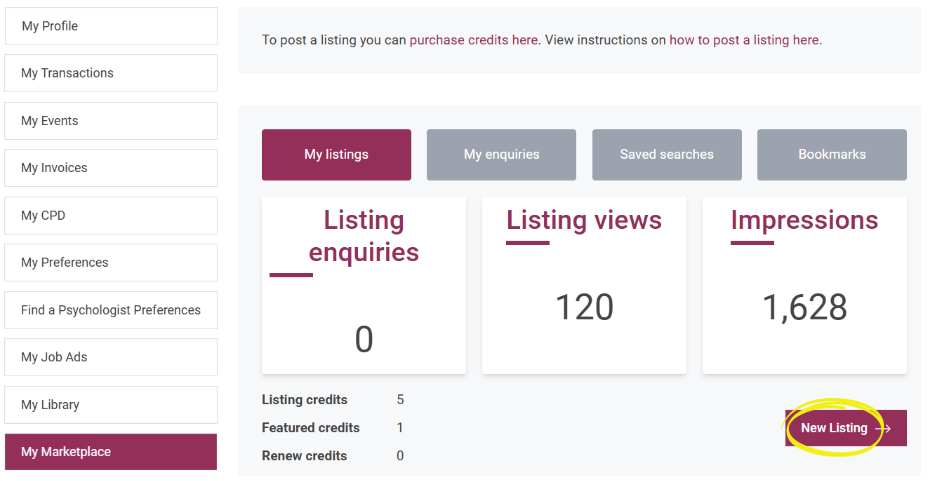
The My Marketplace tab displays the listing credits you have available, and any listings you have published or in draft. Click on New Listing to begin creating your ad:
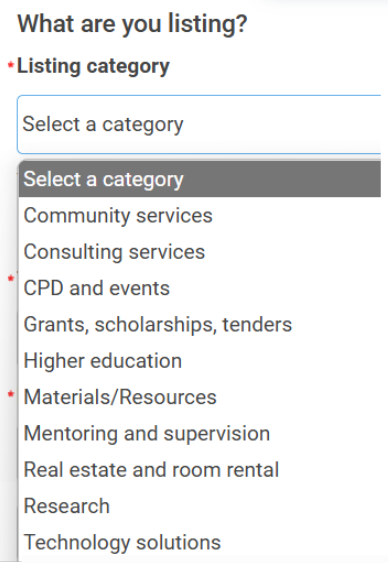
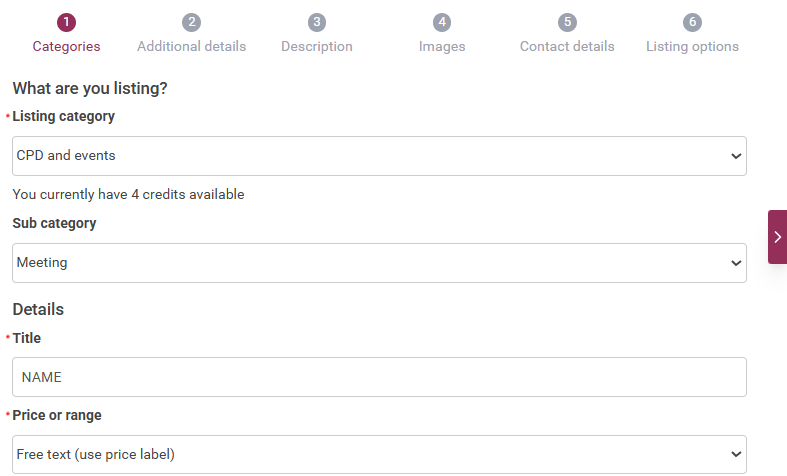
Choose your listing category from the drop-down menu:
Enter the required information which is identified with a red asterisk:
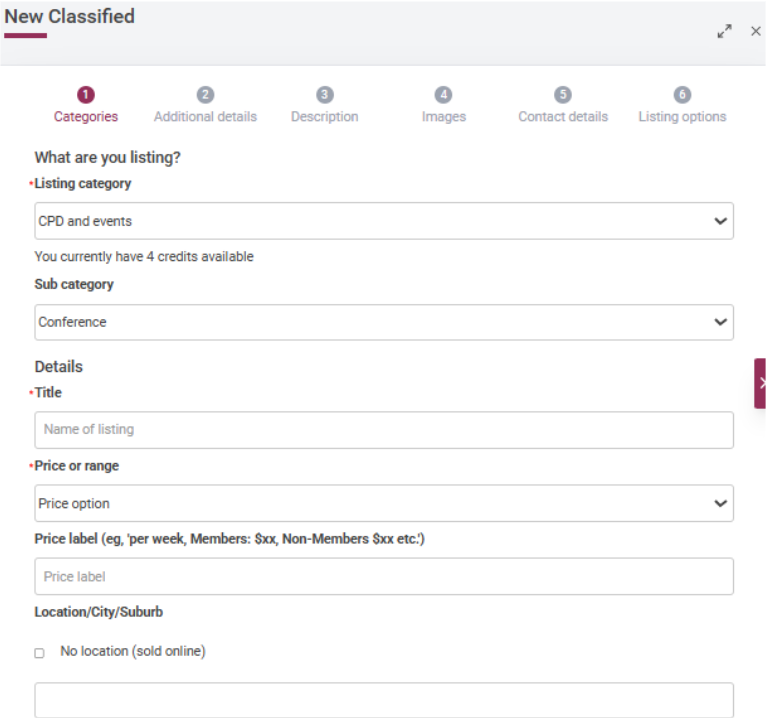
Where applicable, select a sub category.
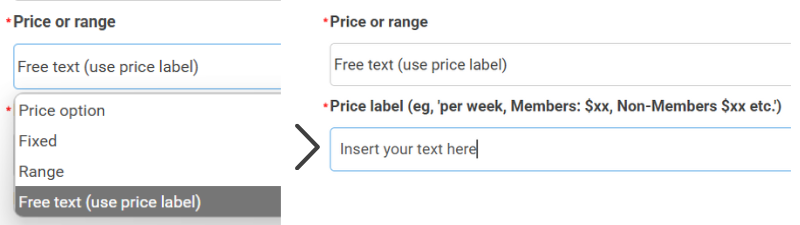
With regards to price or range - you can select free text if a fixed price or price range is not appropriate. This will allow you to type text in the field, rather than a dollar amount:
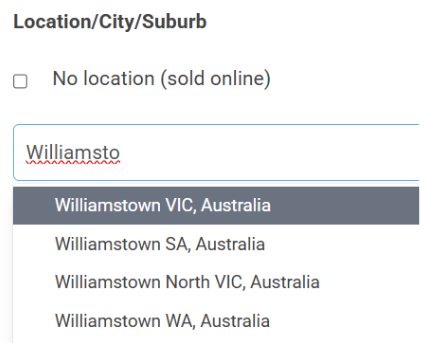
If a location is applicable, start typing the suburb in the location field and a drop down will appear. Select the appropriate location. If location is not applicable, tick ‘no location’.
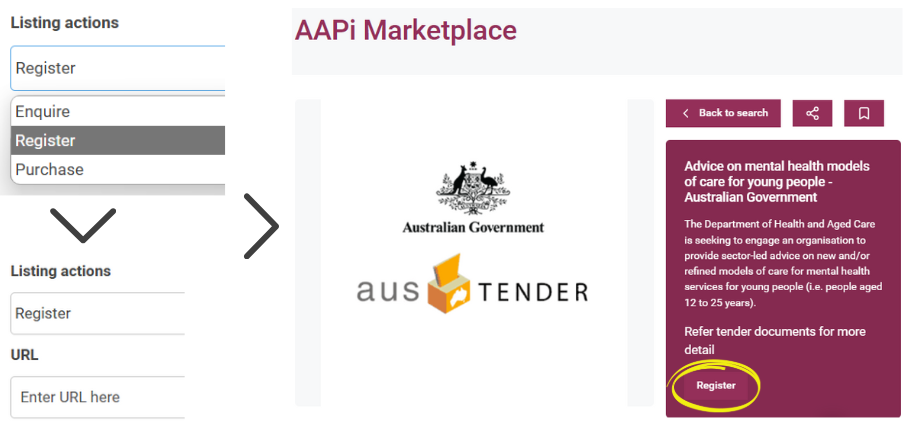
Select your preference for the listing action. ‘Register’ and ‘Purchase’ both bring up a field to include a URL, whereas ‘Enquire’ results in a button on your ad which leads to a form for an enquiry to be emailed.
Register / Purchase example:
Enquiry example:
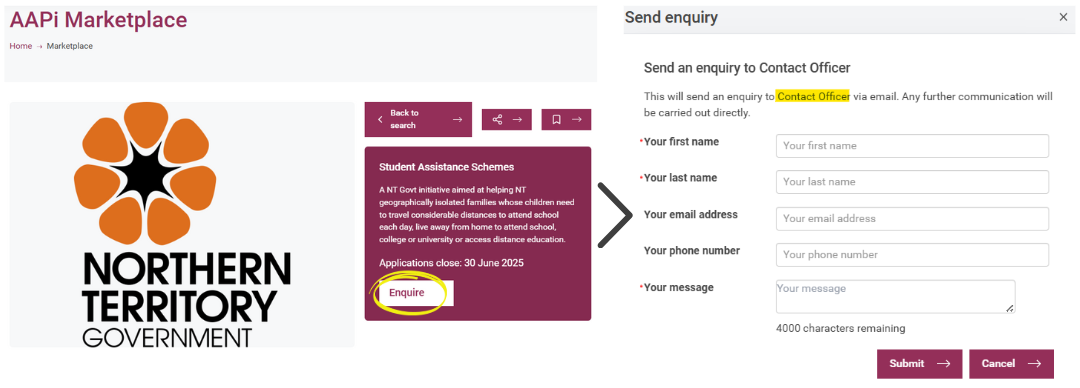
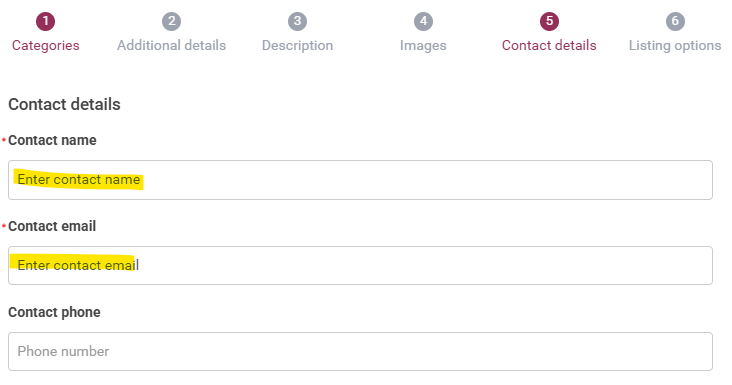
Contact Officer in the enquiry above is the name details entered on tab 5 - enquiries will be sent to the email address you provide here:
Once the details on tab 1 are complete, click on the right arrow.
For all subsequent tabs you can click on Save and then move to the next tab. Remember to do this each time you move from one tab to the next throughout the process.

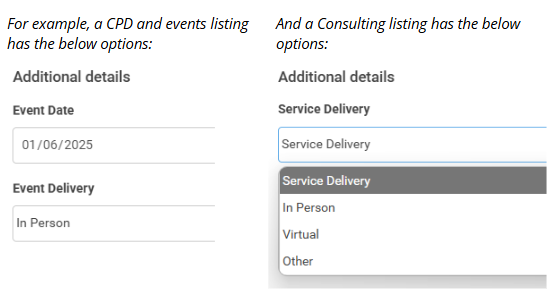
Tab 2 - Additional details. The information available here will depend on the category you chose in tab 1.
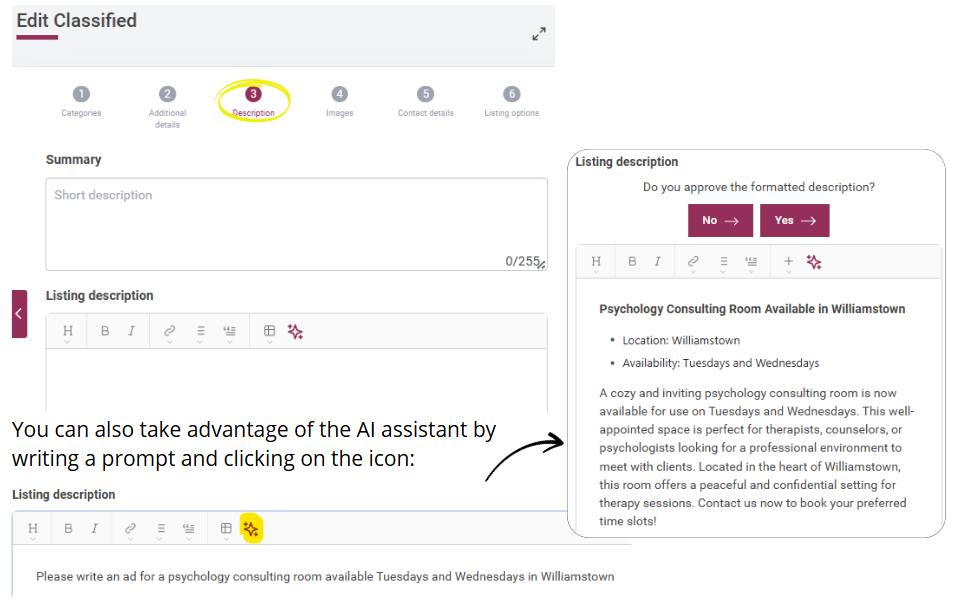
Tab 3 - Description. Please enter your summary and description here. Note: the summary is capped at 255 characters. The description has options to format your text and include links, dot points etc.
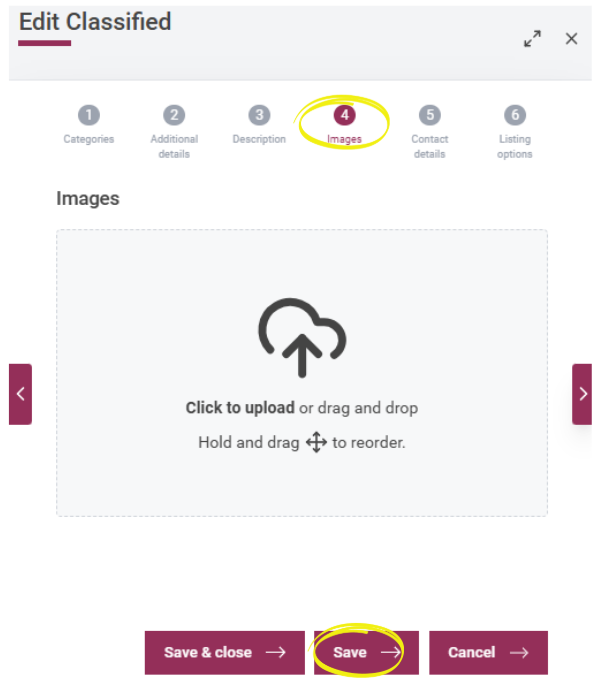
Next is the Images tab. For standard listings you can upload up to 5 images, for featured listings you can upload more than 5 images. Remember to click save after you have uploaded your images.
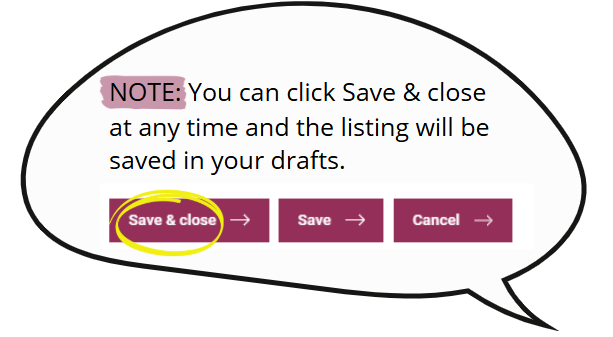
The final tab allows you to choose the type of listing you would like to publish this listing as, depending on the credits you have available. For a standard listing, click on Publish, and then Save & close - this will submit your listing to be approved by the AAPi team.
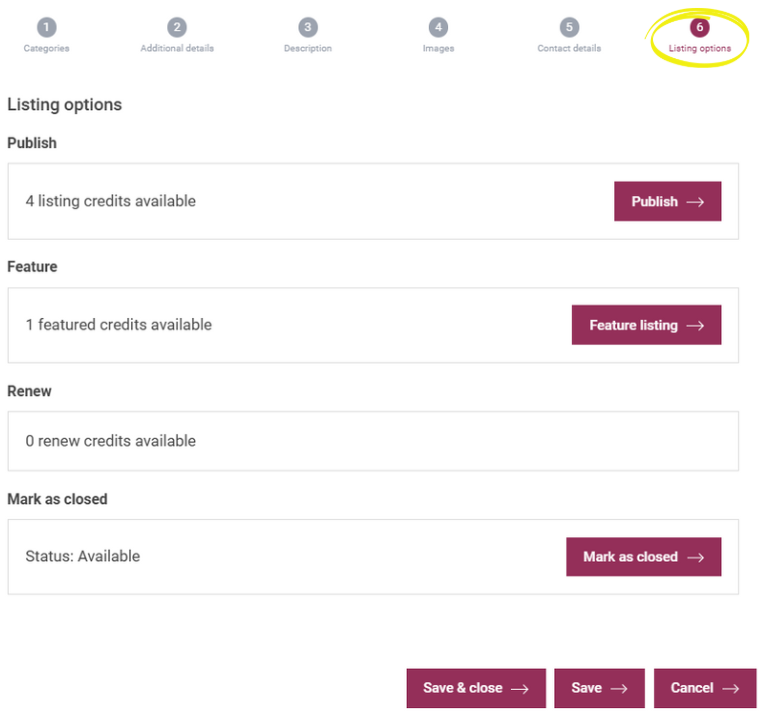
If you have credit available and you would like to feature the listing, click on Feature listing, then click Publish, Save & close.
If your item is no longer available or you would like to take your listing off the site for any reason, you can do so in this tab by clicking on Mark as closed, and then Save & close.
